DESCRIPTION

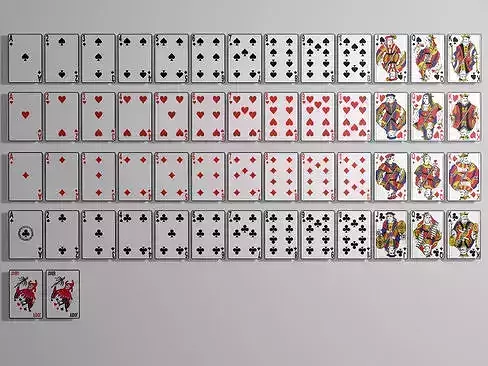
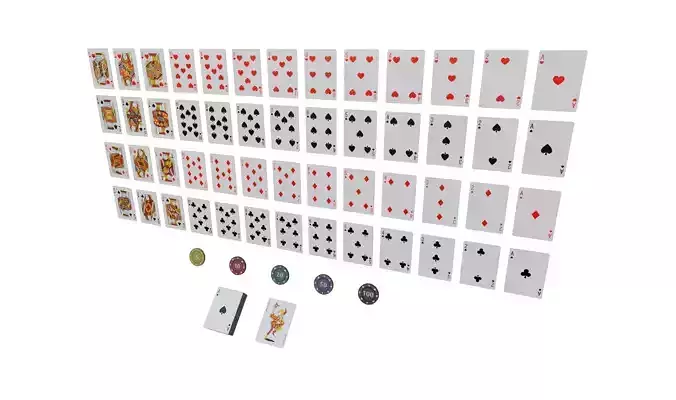
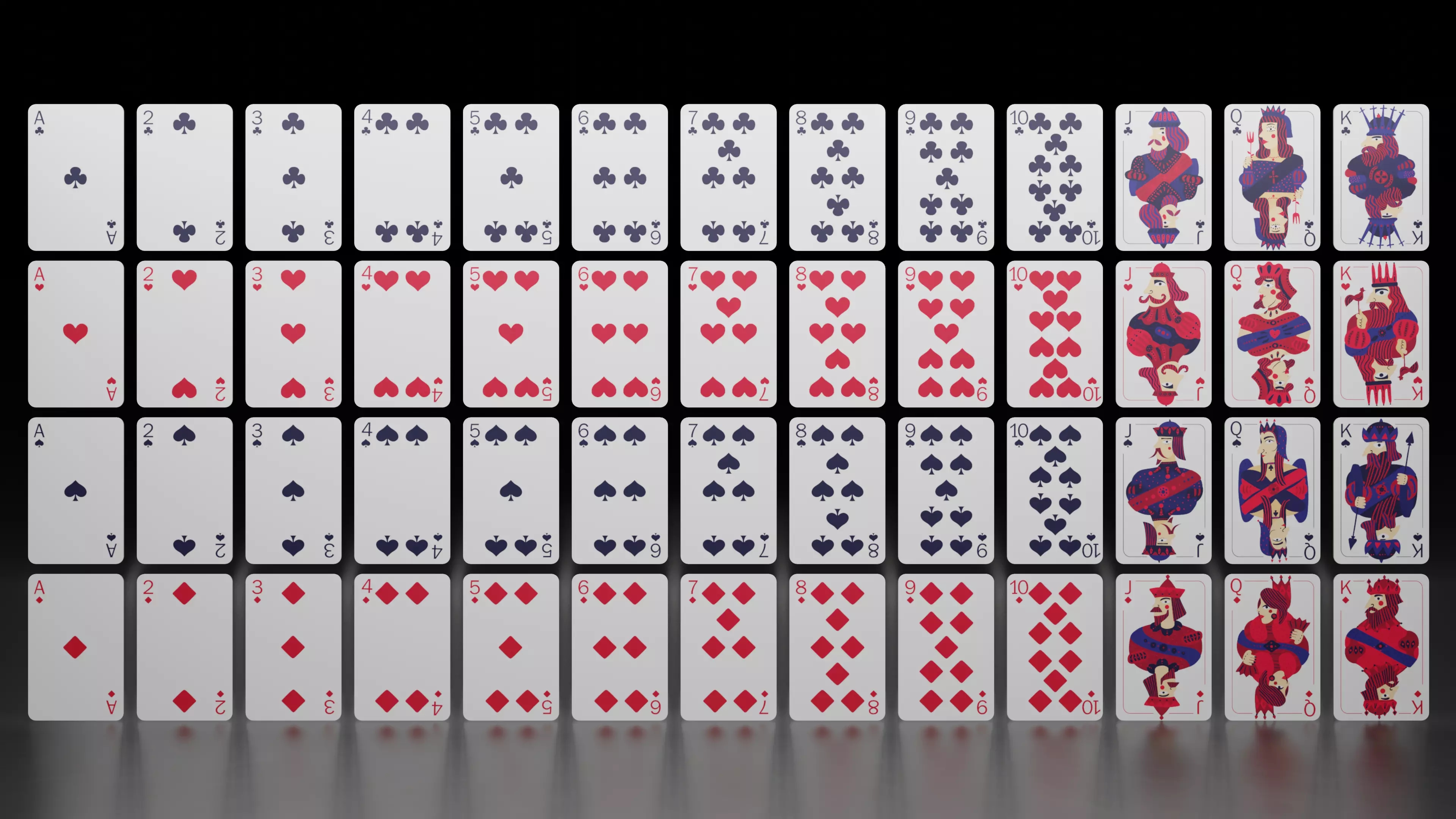
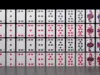
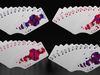
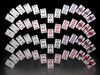
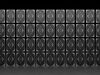
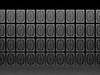
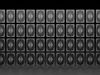
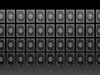
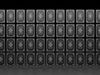
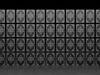
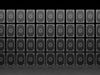
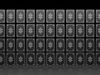
This is a simple low poly 3d model of playing cards.This model consists of deck of 52 cards with each french suit containing 13 cards.

  • Clubs

  • Diamonds

  • Hearts

  • Spades

Technical Aspects:

  • Face Count - 1585

  • Vertex Count - 2964

  • Tris Count - 5666

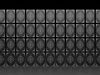
The textures for playing cards are packed into the blend file.The backside of the cards can be changed into 10 different backgrounds with the provided texture file.

Note: Texture files are packed into blend file and can be accessed in UV editor or Shader / Material editor

REVIEWS & COMMENTS

See what other buyers think about this model - real feedback on quality,
accuracy, and usability.
View all
0
0
3
yk8arts
yk8artsBuyer of this model
This user has purchased this specific model
THANKS!
co
coolthings247Buyer of this model
This user has purchased this specific model
bit of process to accesss textures: In Blender 3.5, the process for ensuring textures are included with an FBX file for use in Unity may not explicitly include an "Embed Textures" option as in previous versions. Instead, the workflow focuses on ensuring textures are properly linked and then manually copying those texture files to your Unity project. Here's how you can manage this with newer versions of Blender: Preparing Textures for Export Ensure Textures Are Correctly Linked: Before exporting your FBX file, make sure all textures are correctly applied to your materials in Blender. This means ensuring that each material that needs a texture has it correctly assigned within the Shader Editor. Pack or Unpack Textures: While newer Blender versions might not have a straightforward "Embed Textures" option for FBX files, you can still choose to pack your textures into the Blender file for organization. If they are already packed (as in your case), you will unpack them to manually manage them for Unity. To unpack, go to File -> External Data -> Unpack All Into Files. Choose a directory option that suits you. Exporting FBX without Embedded Textures Export the FBX File: When exporting the FBX: Go to File -> Export -> FBX (.fbx). In the export settings, there isn’t a direct option to embed textures as before. Instead, ensure that in the Path Mode option (under the Armature tab), you select Auto or Copy if available. However, understand that this does not embed textures but prepares the file paths for external use. Managing Textures for Unity Manually Copy Textures: After exporting your FBX, manually copy the textures you previously unpacked (or already had) into your Unity project’s Assets folder. This step is crucial as Unity does not automatically import external textures unless they are placed in the project’s asset directory. Assign Textures in Unity: Once you've imported your FBX model and the textures into Unity, you might need to manually assign these textures to the materials in Unity, especially if they weren't automatically linked. Locate the materials in the Unity Editor that are associated with your imported FBX model. For each material, find the texture slots (like Albedo) in the Inspector and drag the corresponding texture from your project assets to the slot. This approach ensures that all your textures are included with your Unity project and properly applied to your models, albeit with a few manual steps for linking textures to materials in Unity. Unity's material system is flexible but requires that textures be present in the project's asset directory for them to be assigned to materials.
hadimahdiloo
hadimahdilooBuyer of this model
This user has purchased this specific model
thanks

Playing Cards - Deck of 52 cards Free low-poly 3D model

Royalty Free License (no AI)
Hire
Like this model to show appreciation to the designer.
See how many times this model was viewed.
Share this model to support the designer and boost their visibility.
File format
FBX
Autodesk FBX<br />File Size: 5.09 MB
Provided by designer
Information and details shared directly by the model's designer.
3D Features
The model includes animations (movement or actions) that can be played in supported software or engines.
The model has a skeleton or bone structure, making it ready for posing or animation.
PBR
Uses Physically Based Rendering materials, which give the model realistic lighting and surface properties.
Textures
The model includes image files (textures) that add color, patterns, or detail to its surfaces.
Materials
The model has material settings that define how surfaces look (color, shine, transparency, etc.).
UV Mapping
The model's surfaces are mapped to a 2D image, allowing textures to display correctly.
Plugins Used
Some external plugins were used to create the model. These may be required for full functionality.
3D printing
Indicates whether the designer marked this model as suitable for 3D printing.
Model is not 3D printable
The designer indicates this model is intended for digital use only (rendering, animation, or AR/VR) and not for 3D printing.
Geometry
Polygon mesh
A model built from polygons (triangles or quads) connected in a mesh.
1585 polygons
The total number of polygons (flat shapes) that make up the 3D model.
/ 2965 vertices
The number of points (corners) that define the shape of the model's polygons.
Unwrapped UVs
Publish date
Model ID
Chat